
Your account still shows 10MB
Switch to 9MB to leave room below a 10MB allowance. This smaller target can lose more detail; use it when your account needs it.
VIDEO COMPRESSOR
Compress to a 19MB MP4 for Discord’s current 20MB free upload limit. If your account shows 10MB, switch to 9MB below.
Discord
Aim for 19 MB or less
MP4 · H.264 · ≤ 19 MBMP4 · H.264 · ≤ 19 MB · Original · Fast
Checking compression access...
The free upload limit increased from 10MB to 20MB in August 2026. Nitro now allows up to 1GB. These are Discord’s published limits; your account may show a different allowance.
| Discord plan | Published upload limit |
|---|---|
| Free | 20MB |
| Nitro Basic | 50MB |
| Nitro | 1GB |
Verified 2026-09-30 · Discord attachment FAQ · Discord Nitro plans
Discord checks the selected file’s size before its own compression, including on mobile. A source larger than your allowance can be rejected before that compression starts. Compress it here first, then attach the downloaded MP4 instead of the original.
Start with available trial or free compression credits. “Without Nitro” refers to Discord’s subscription; this service’s compression allowance still applies.
Choose a starting point
Start with 19MB when your account allows 20MB. If Discord still shows a 10MB allowance, use 9MB. Check the downloaded result before posting.
Switch to 9MB to leave room below a 10MB allowance. This smaller target can lose more detail; use it when your account needs it.
Use the default 19MB target. It leaves 1MB of headroom and a larger budget for picture and sound than 9MB. The result can be smaller than the target.
Start by keeping the original resolution so small text remains readable. If the result is unclear at your limit, shorten the recording in an editor before another attempt.
These buttons change only the size target and select target-size mode. Your file and resolution setting stay in place; uploading starts only when you choose Start Compression.
Before you share
Review these parts in the downloaded MP4 before posting. A still opening frame is not enough to judge the whole clip.
Look for blocks or smearing during camera turns and game action. If the allowance permits, try a larger target.
Read chat messages, menus and code at the size your viewers will use. Lower resolution can remove detail that extra bitrate cannot restore.
Listen through the important moment and check that sound matches the picture. Keep only the necessary part of a long clip.
This is a review checklist, not a compression benchmark. Keep the original for further attempts.
Discord’s attachment FAQ lists 20MB for free uploads, 50MB for Nitro Basic and up to 1GB for Nitro. The free limit rose in August 2026. Discord checks size before its own compression. Our 19MB preset leaves room below 20MB; follow your account’s allowance if it differs. Discord attachment FAQ
Official guidance · checked 2026-09-30
Attach the downloaded result rather than the original. Check its size against the allowance shown in Discord and lower the target if necessary.
Recompress from the original with a larger target if allowed. For a strict cap, trim unneeded footage before reducing resolution, especially when text matters.
Play the downloaded MP4 locally first. Ask the recipient to download it and try a compatible player; if the local file also fails, return to the original and try again.
We tested a gameplay recording and phone footage at both targets. The screen recording already fitted both limits, so we kept the original. These are local encoding tests, not timings from the live website.
Measured 2026-09-30 with FFmpeg 8.1.2 on macOS arm64, H.264 two-pass encoding, veryfast, two threads and our adaptive-v1 resolution policy. One run per target. MB means 1,000,000 bytes.
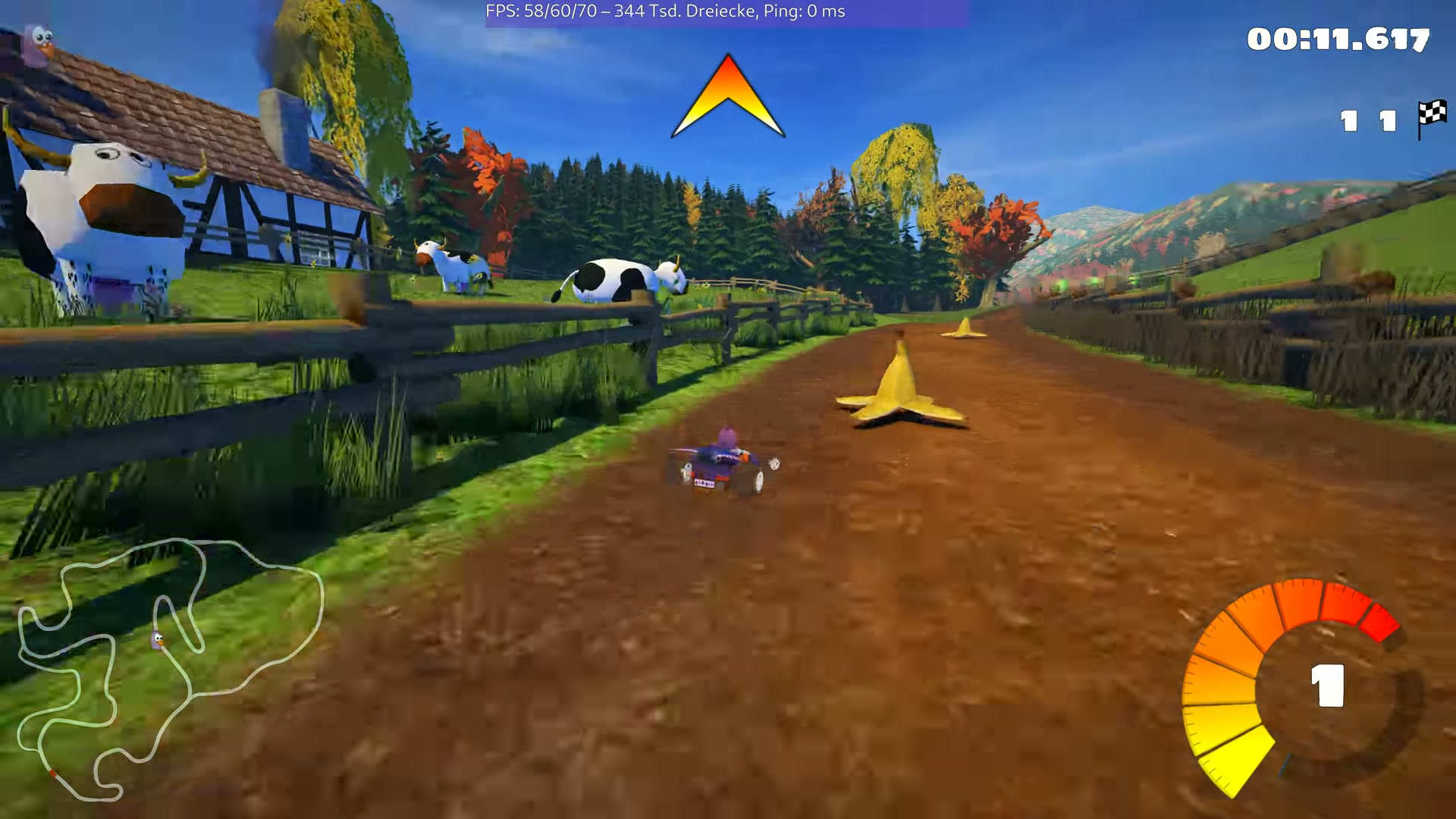
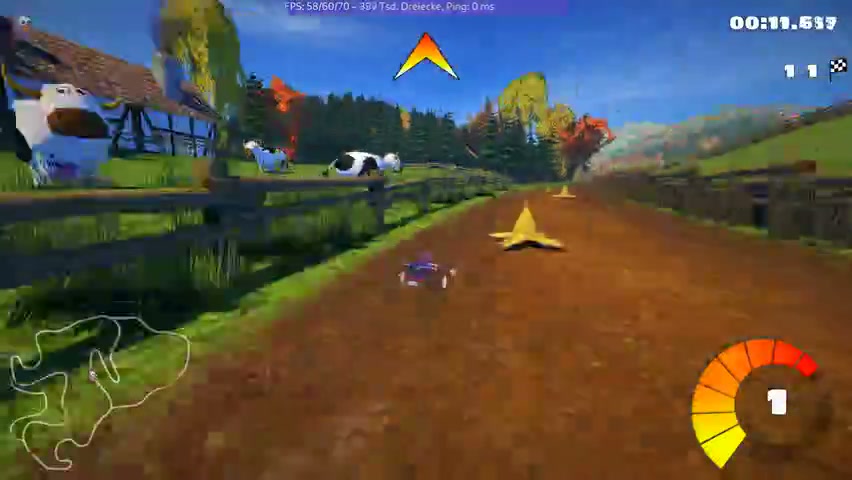
Both targets selected 480p for this 70.8-second, 60fps recording. The 19MB result has a larger bitrate budget, but neither preserves the source resolution. Shortening a long highlight may help more.
Source
Actual file size: 52.05 MB
Video dimensions: 1920 × 1080
9MB target
Actual file size: 8.69 MB
Video dimensions: 852 × 480
19MB target
Actual file size: 18.30 MB
Video dimensions: 852 × 480
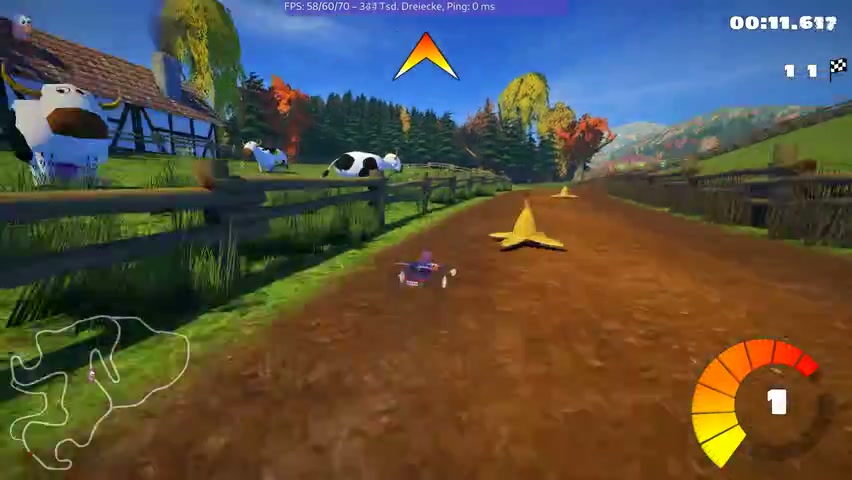
Frames at 30s. Open an image to inspect its encoded dimensions. JPEG snapshots are illustrative; they do not establish motion or audio quality.
SuperTuxKart authors; recording uploaded by PantheraLeo1359531. Wikimedia 1080p VP9 derivative. Frames and recompressed derivatives: CC BY-SA 4.0. Source and attribution · CC BY-SA 4.0
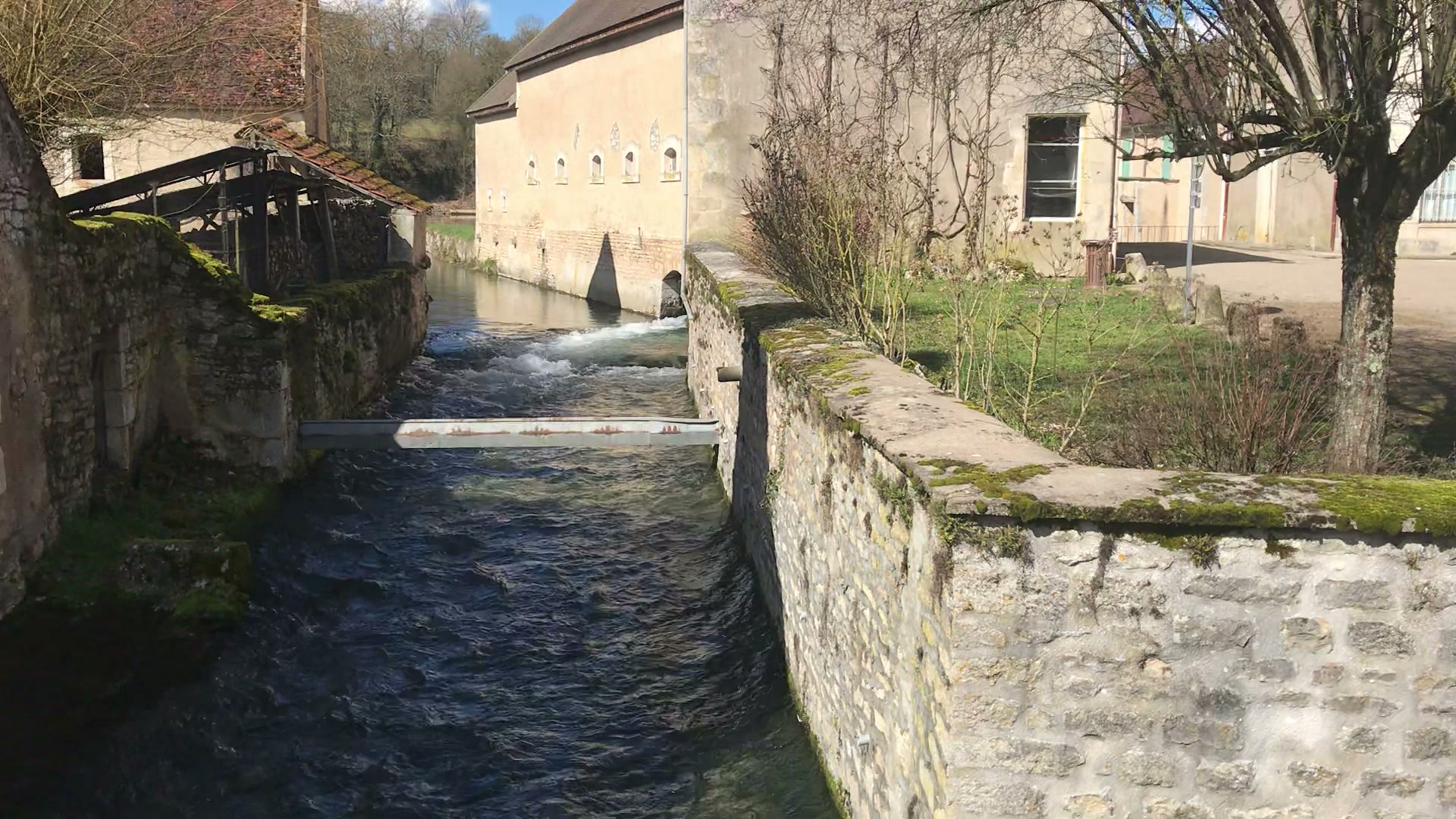
For this 30.8-second clip, the 9MB target selected 720p and the 19MB target retained 1080p. Compare the water and fine branches; a higher resolution alone does not prove better quality for every video.
Source
Actual file size: 50.94 MB
Video dimensions: 1920 × 1080
9MB target
Actual file size: 8.51 MB
Video dimensions: 1280 × 720
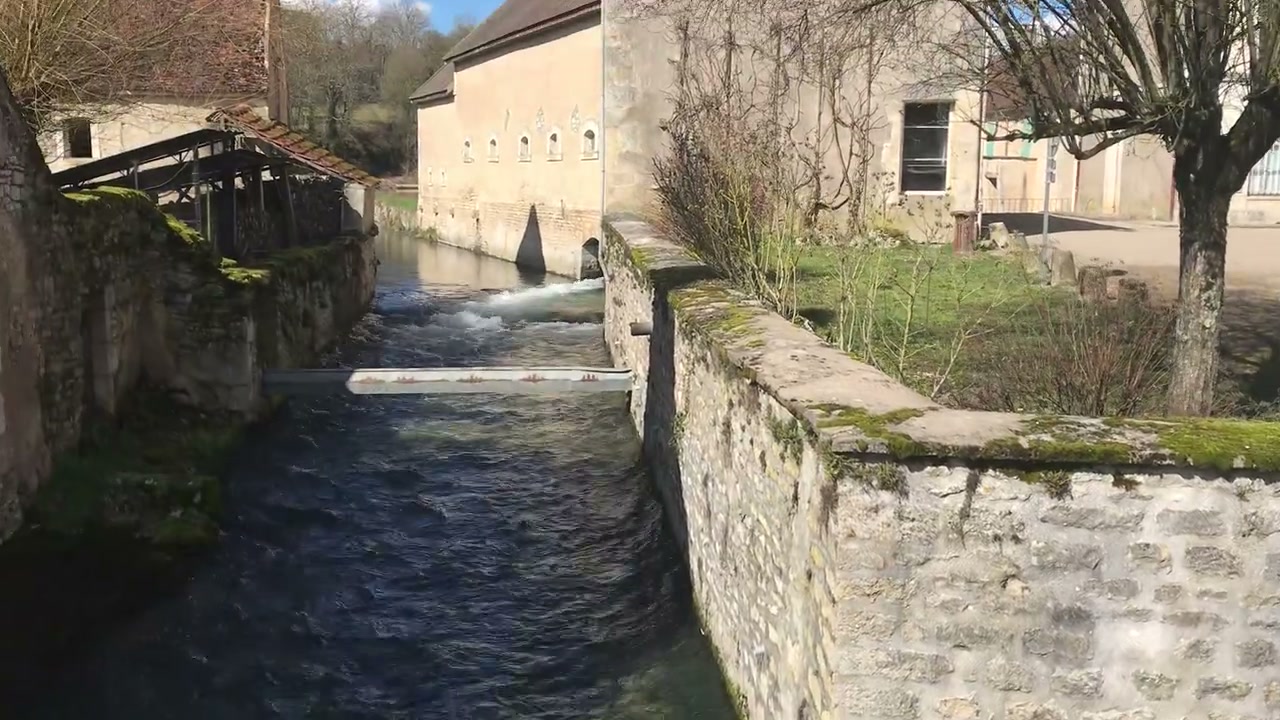
19MB target
Actual file size: 17.93 MB
Video dimensions: 1920 × 1080
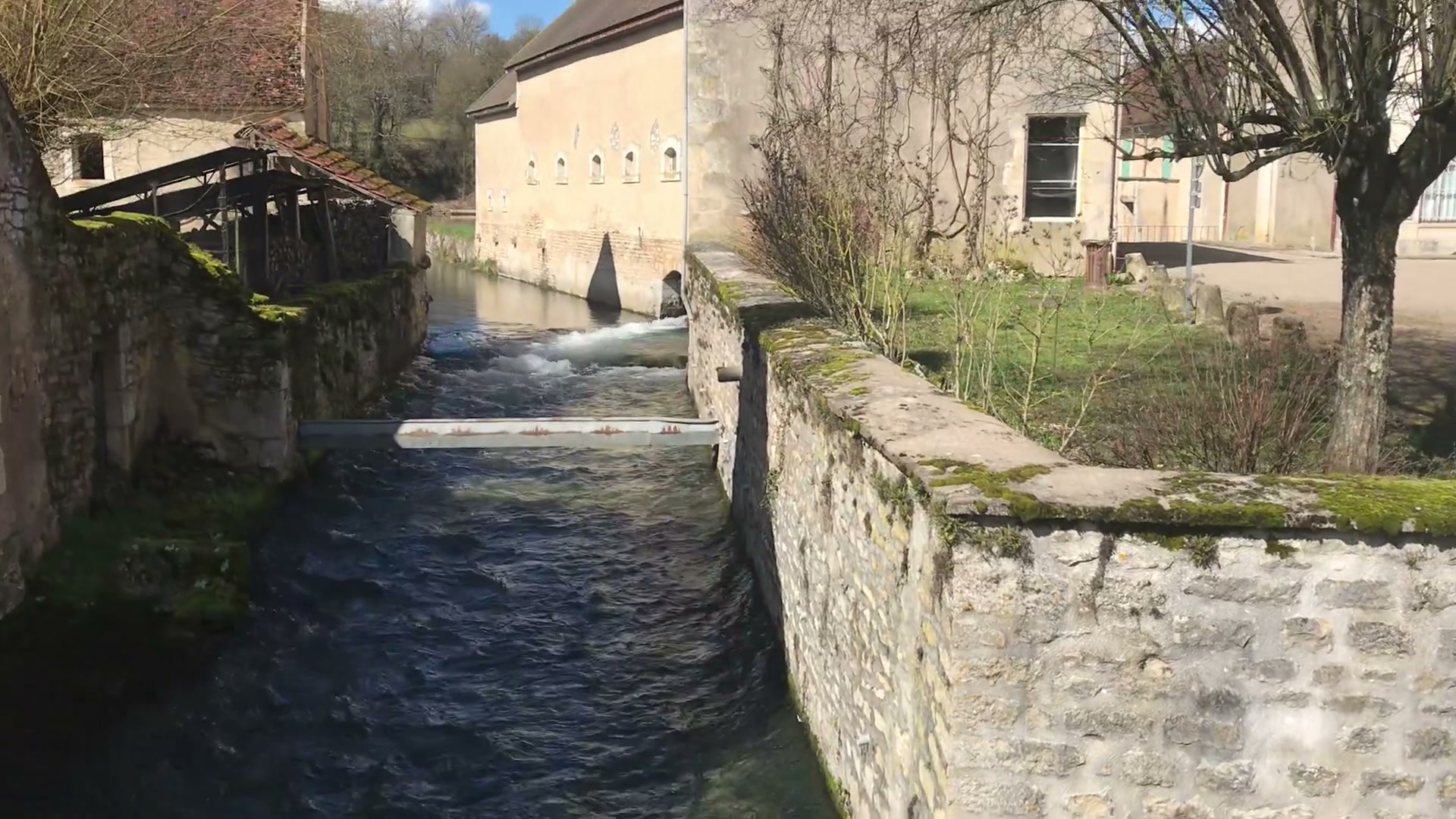
Frames at 10s. Open an image to inspect its encoded dimensions. JPEG snapshots are illustrative; they do not establish motion or audio quality.
Benoît Prieur, iPhone 7 footage from Wikimedia Commons, CC0 1.0. Downloaded WebM copy, not a camera-original file. Source and attribution · CC0 1.0
This 60-second H.264 MP4 is only 3.32MB. It already fits both targets. No encoding was performed and the comparison uses the same source frame.
Source
Actual file size: 3.32 MB
Video dimensions: 1920 × 1080
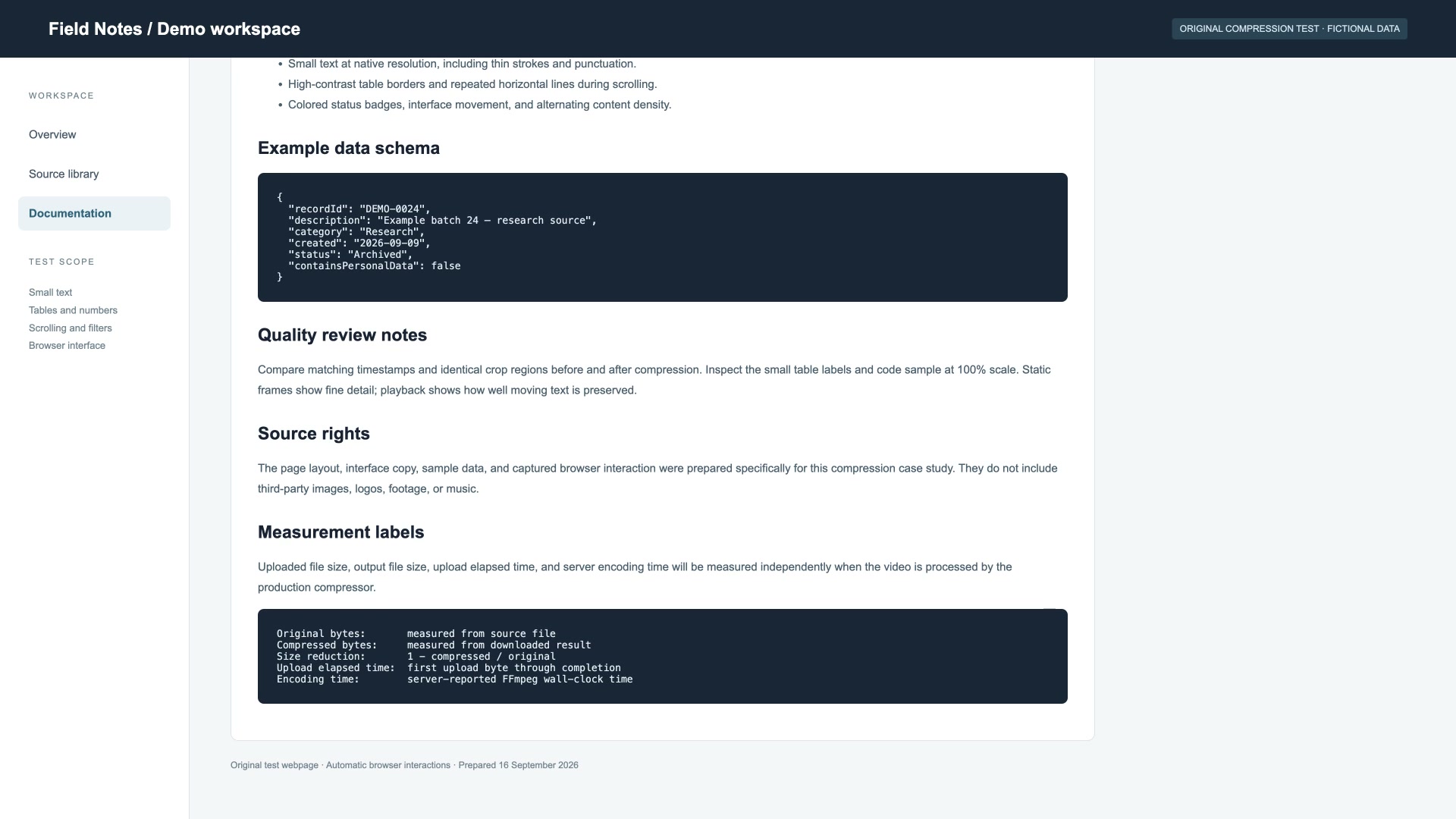
9MB target
Actual file size: 3.32 MB
Video dimensions: 1920 × 1080
19MB target
Actual file size: 3.32 MB
Video dimensions: 1920 × 1080
Original already fits — no re-encoding
Frames at 24s. Open an image to inspect its encoded dimensions. JPEG snapshots are illustrative; they do not establish motion or audio quality.
Original test webpage recording with fictional records, made for our September 16 case study. Source and attribution
Use 19MB when your Discord allowance is 20MB. Keep 9MB for an account that shows 10MB, and keep the original when it already fits. Check motion, text and sound before sharing.
All four encoded results passed their byte ceiling and a full decode check. Tests exclude upload, queueing and download time, and do not verify Discord acceptance. Individual results are not averages or a quality guarantee.